How can we help you?
How to Install Your Bot on MT5?
This tutorial explains how to install your .ex5 bot on the MT5 platform.

1. Download your MT5 bot
After creating your bot, the system automatically compiles both the MT5 and MT4 versions. You can then download the appropriate file — simply go to your panel and download the MT5 bot that was generated based on your selected preferences.

2. Open your MetaTrader 5
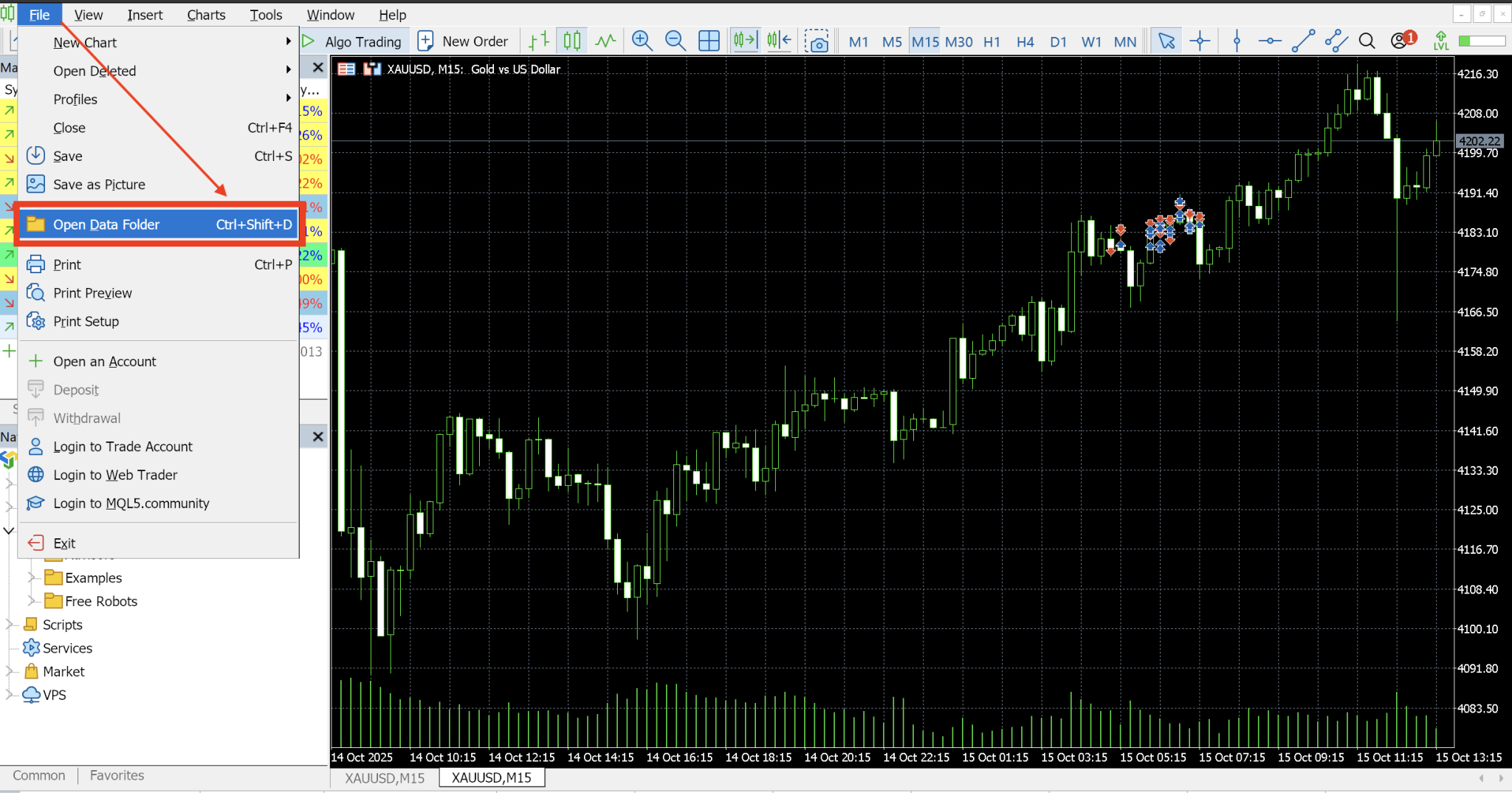
Open MetaTrader 5, then go to File → Open Data Folder.
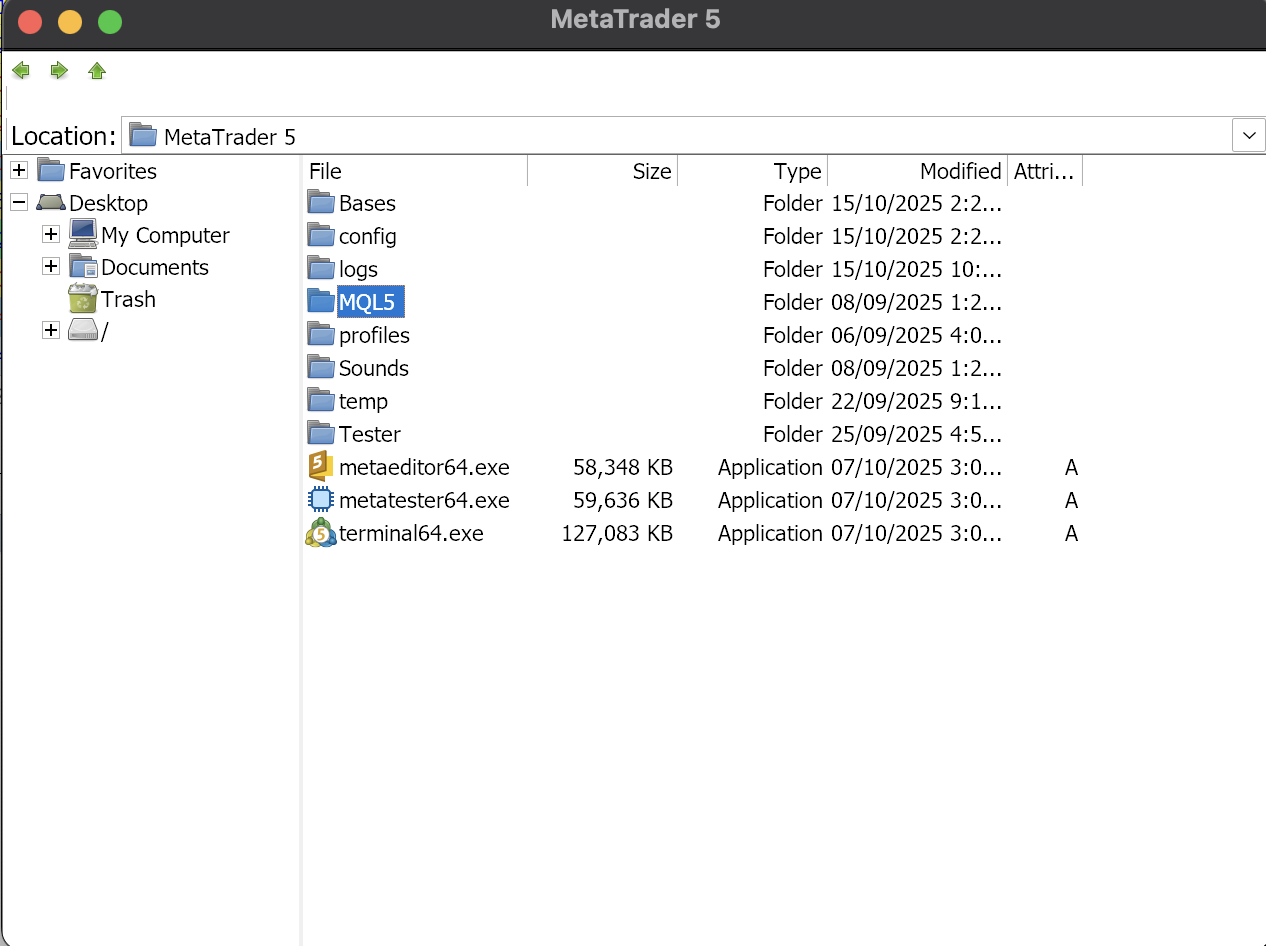
3. Click on “MQL5 ” folder
Double-click on the MQL5 folder.
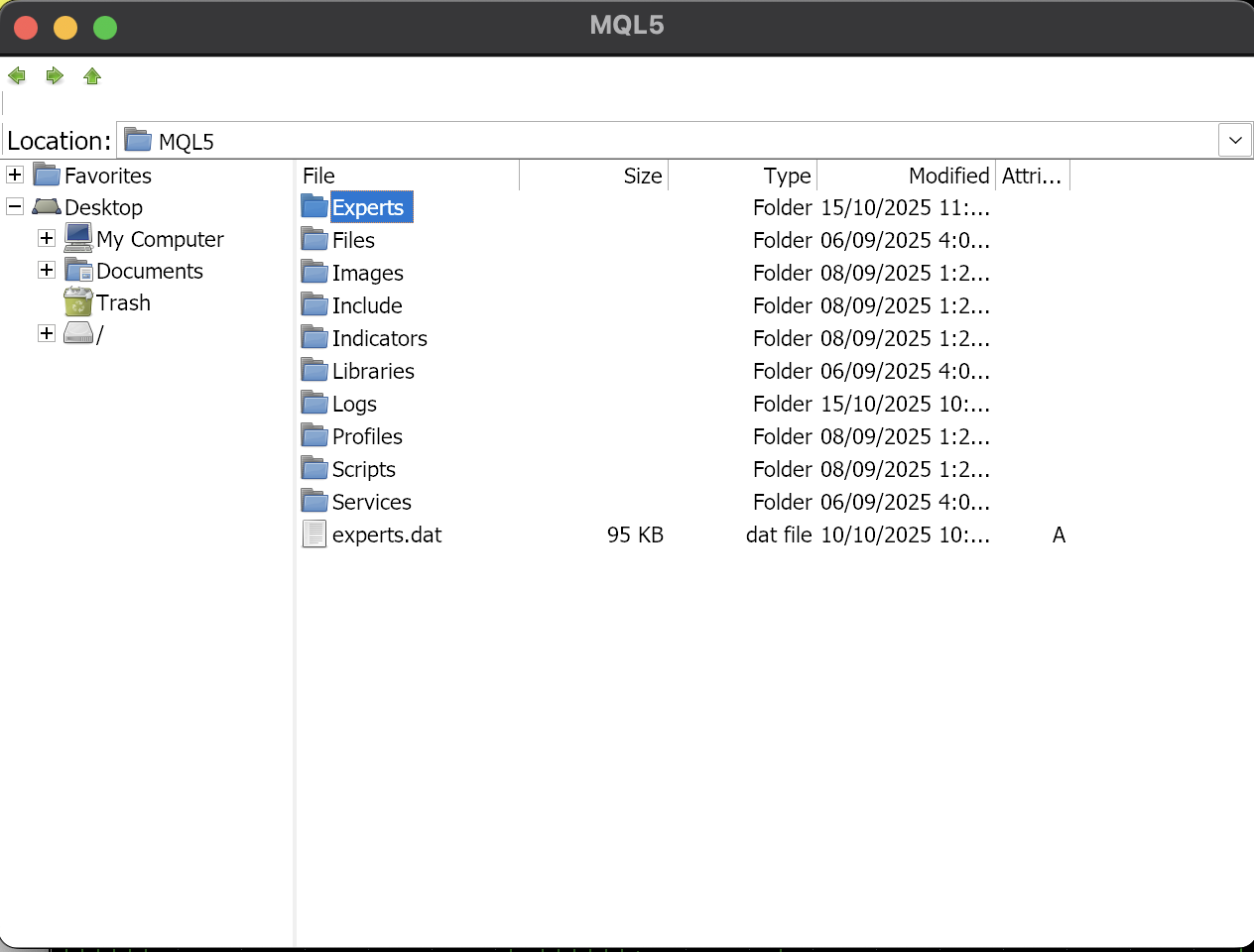
4. Click on “Experts” folder
Double-click on the Experts folder — this is where you will paste your bot file.
5. Copy and paste your bot
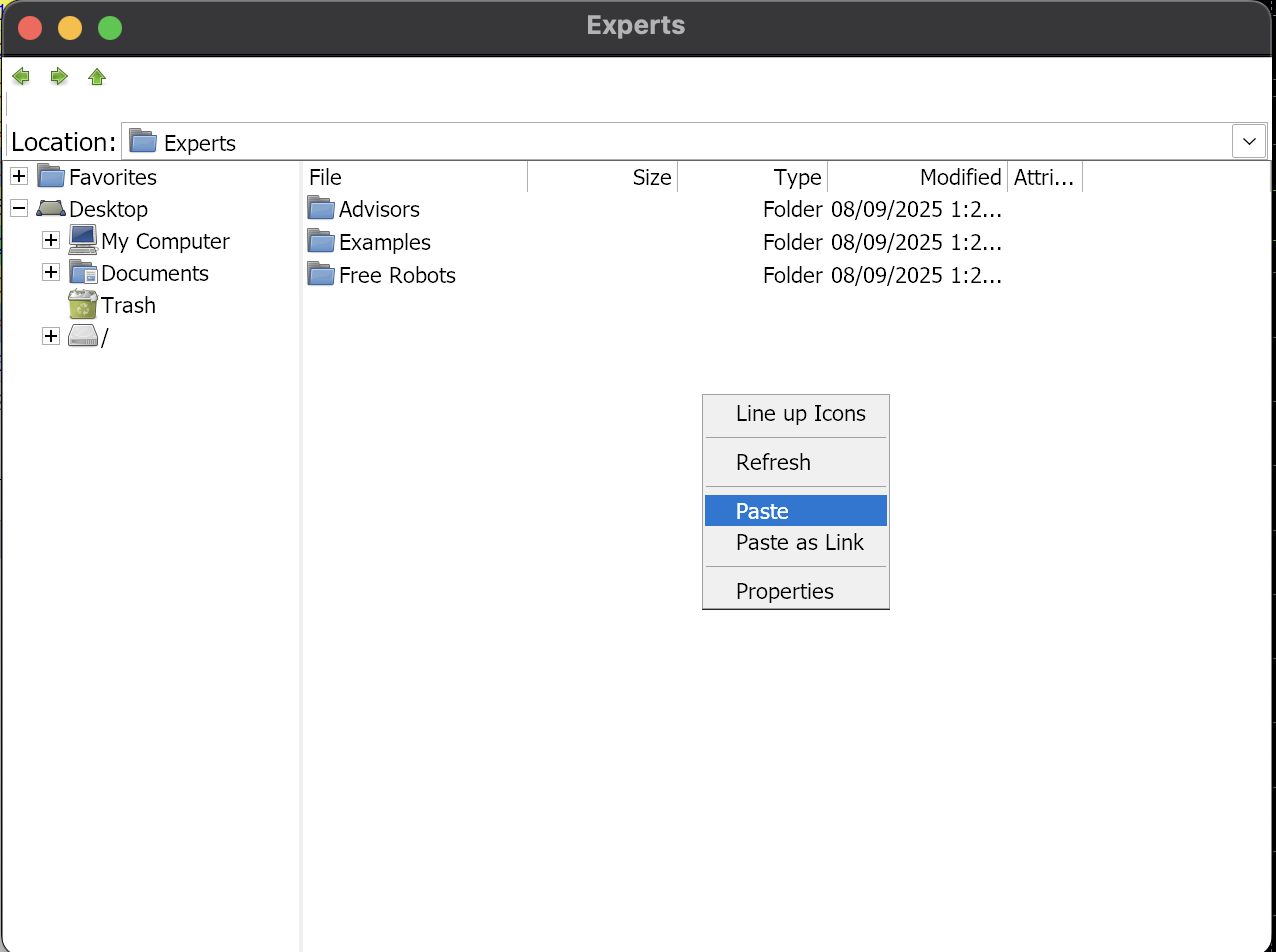
Download your compiled bot from your dashboard, then copy the file and paste it into the Experts folder in MetaTrader.
6. Open Market Watch
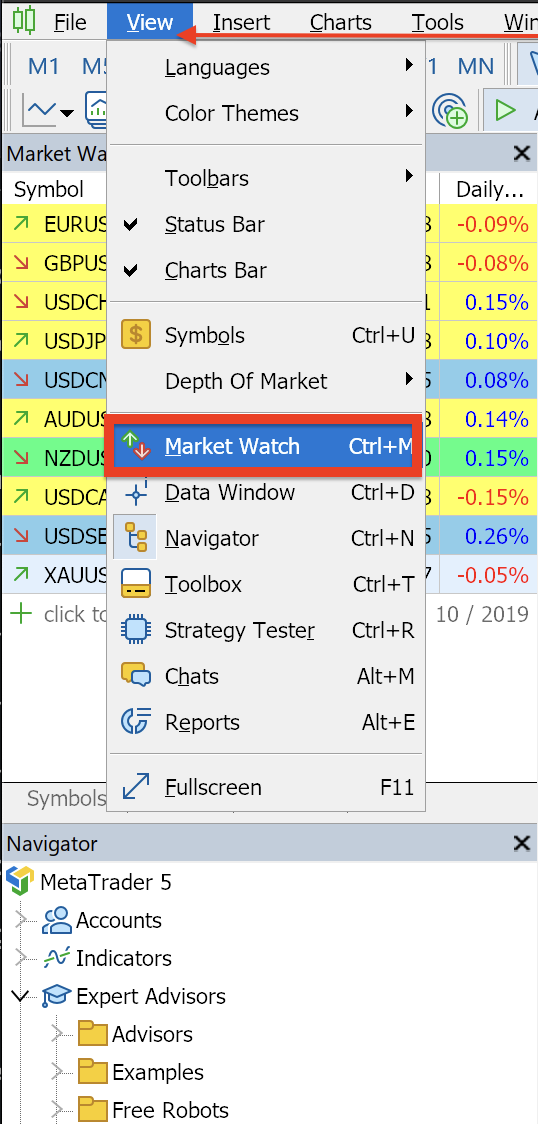
Click on View → Market Watch to display the list of currencies on the right sidebar. From there, you can also add any currency pair you want by typing its name, allowing you to automate trading on the pair you prefer.
6. Open Chart Window
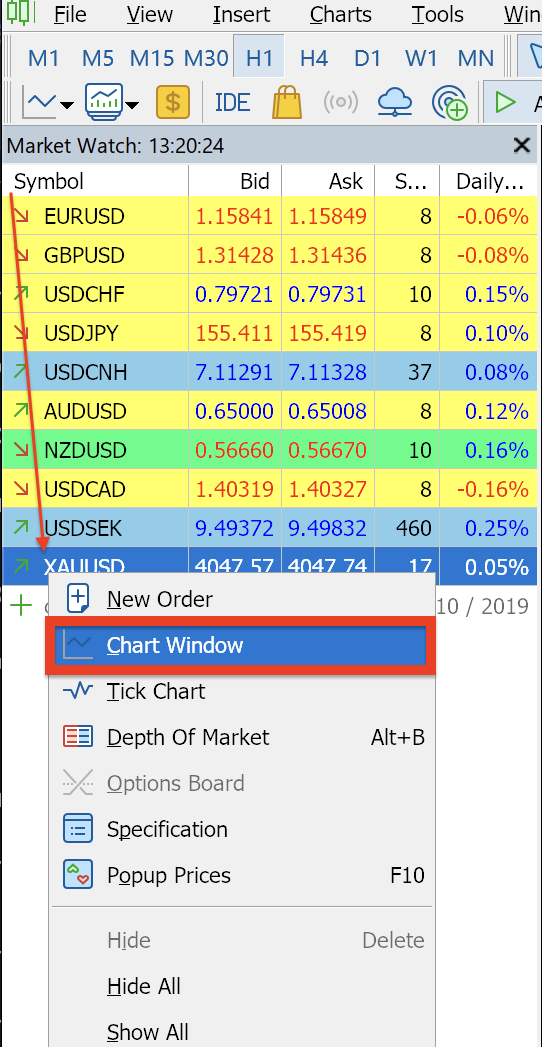
Once you open the currency pairs, right-click on the pair where you want to install the bot and select Chart Window. This will open the chart for that specific pair.
7. Open Navigator
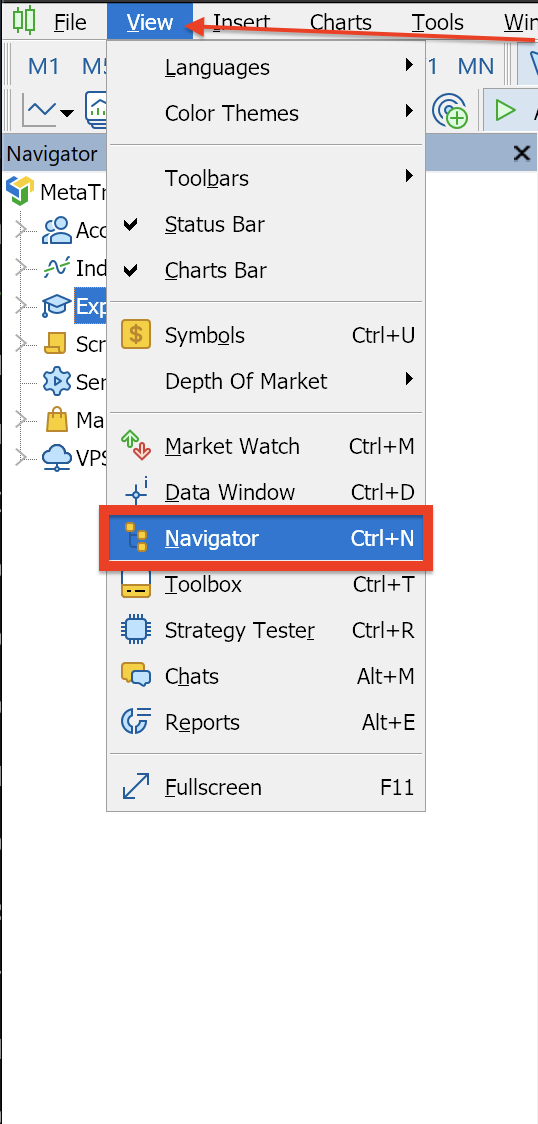
Click on View → Navigator. In the Navigator sidebar, you will see your Expert Advisors under the Expert Advisors section. If your bot does not appear, simply right-click and select Refresh — your bot should then be visible.
8. Drag your bot
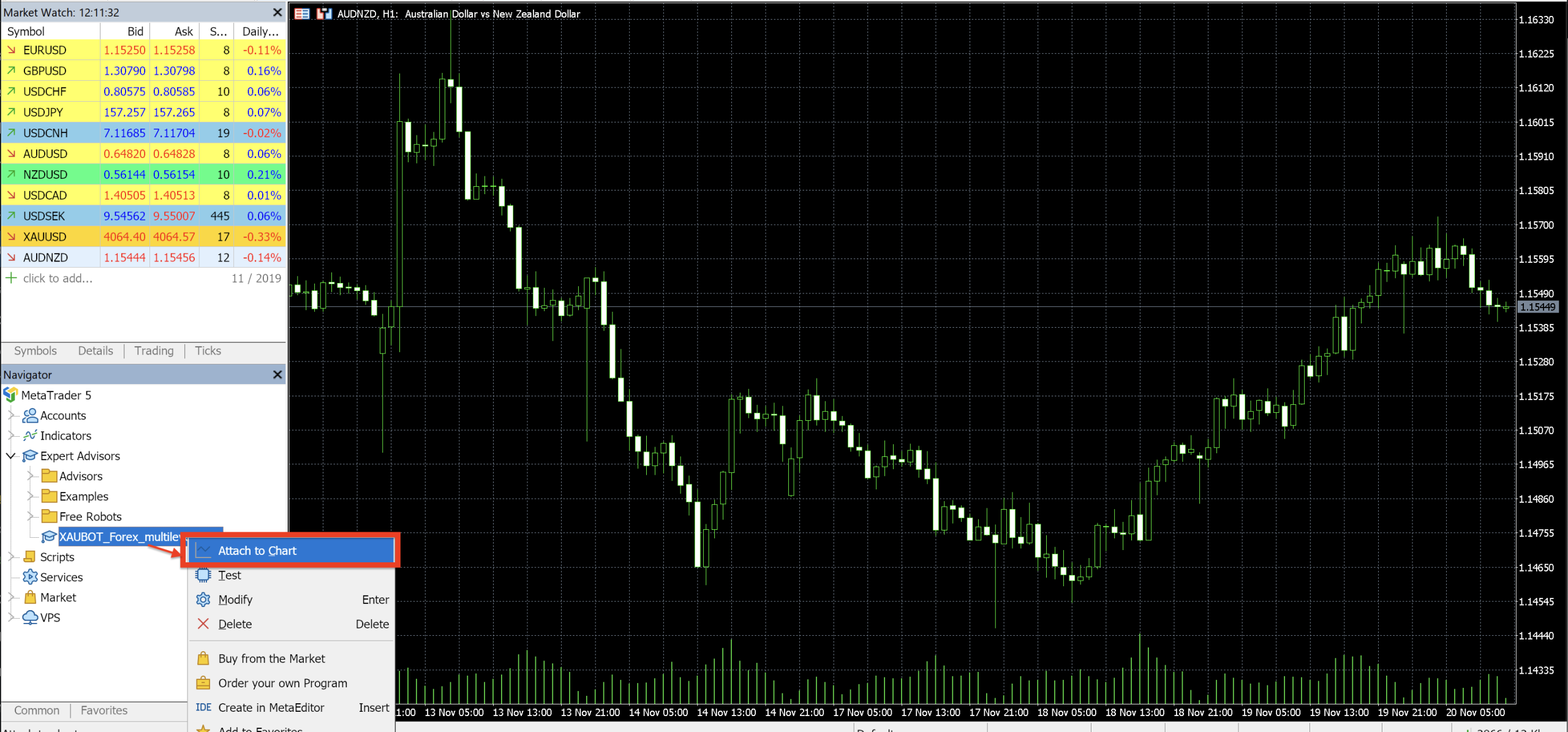
Once you see your bot in the Navigator, right-click on its name and select Attach to Chart.
8. Activate settings
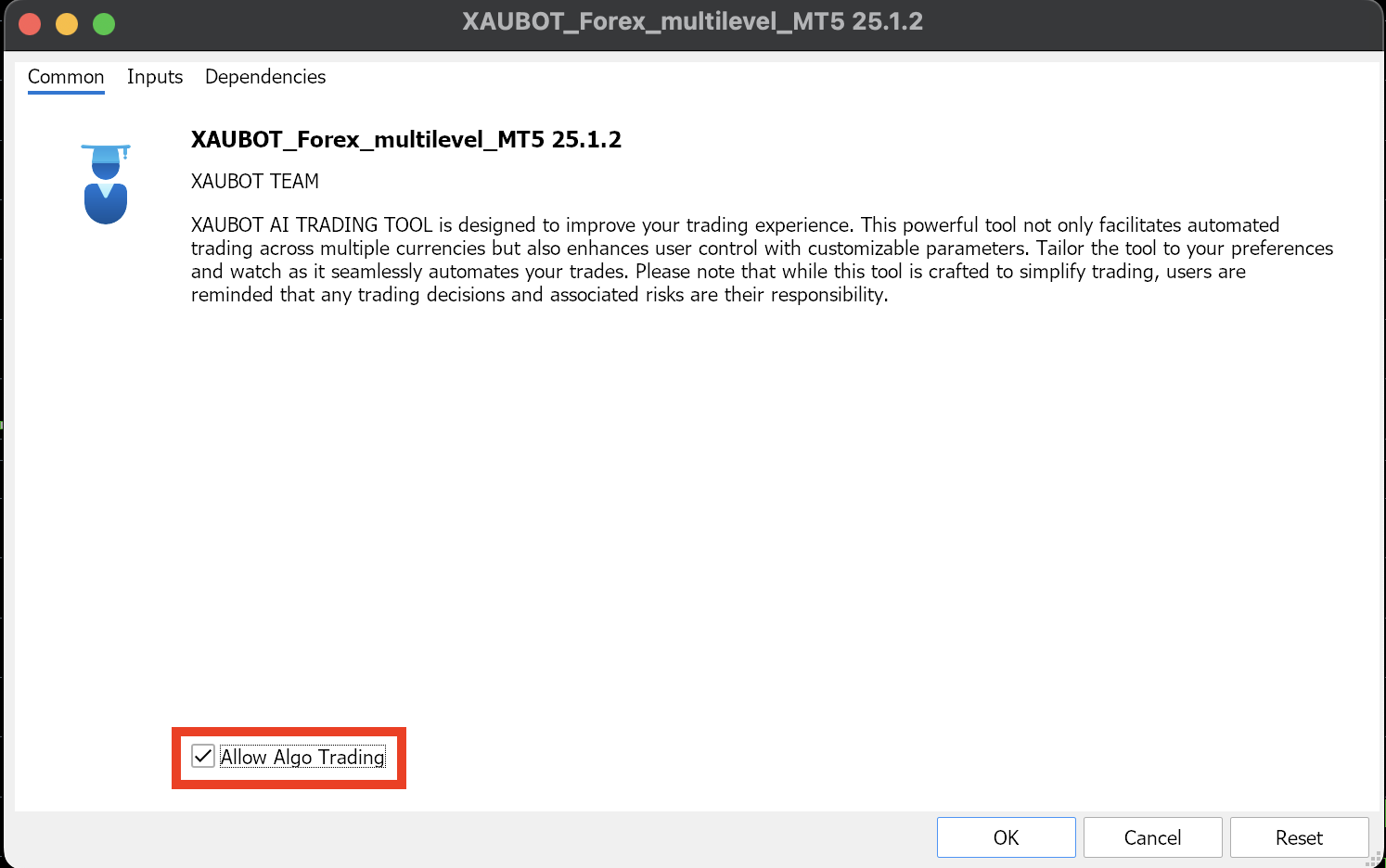
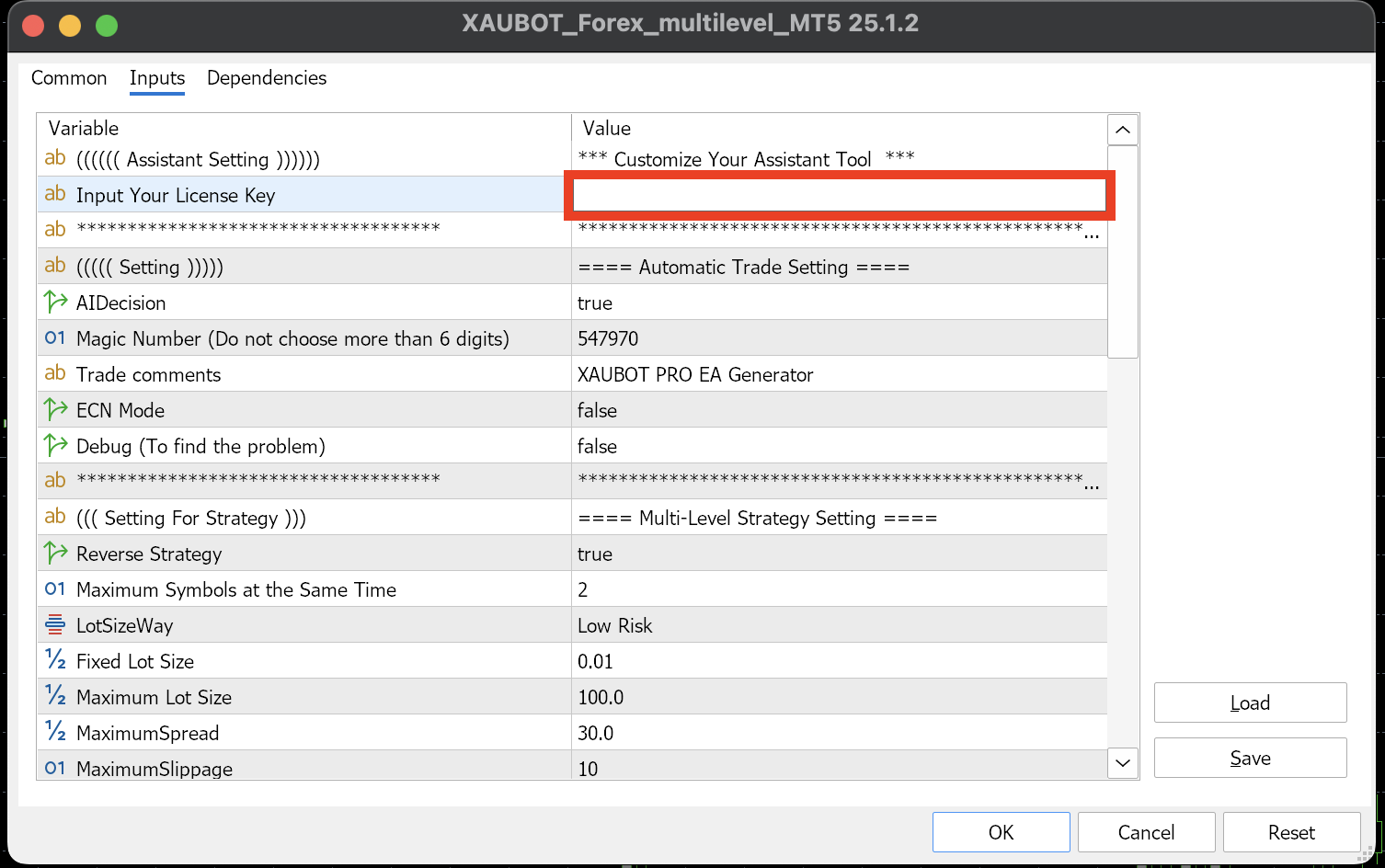
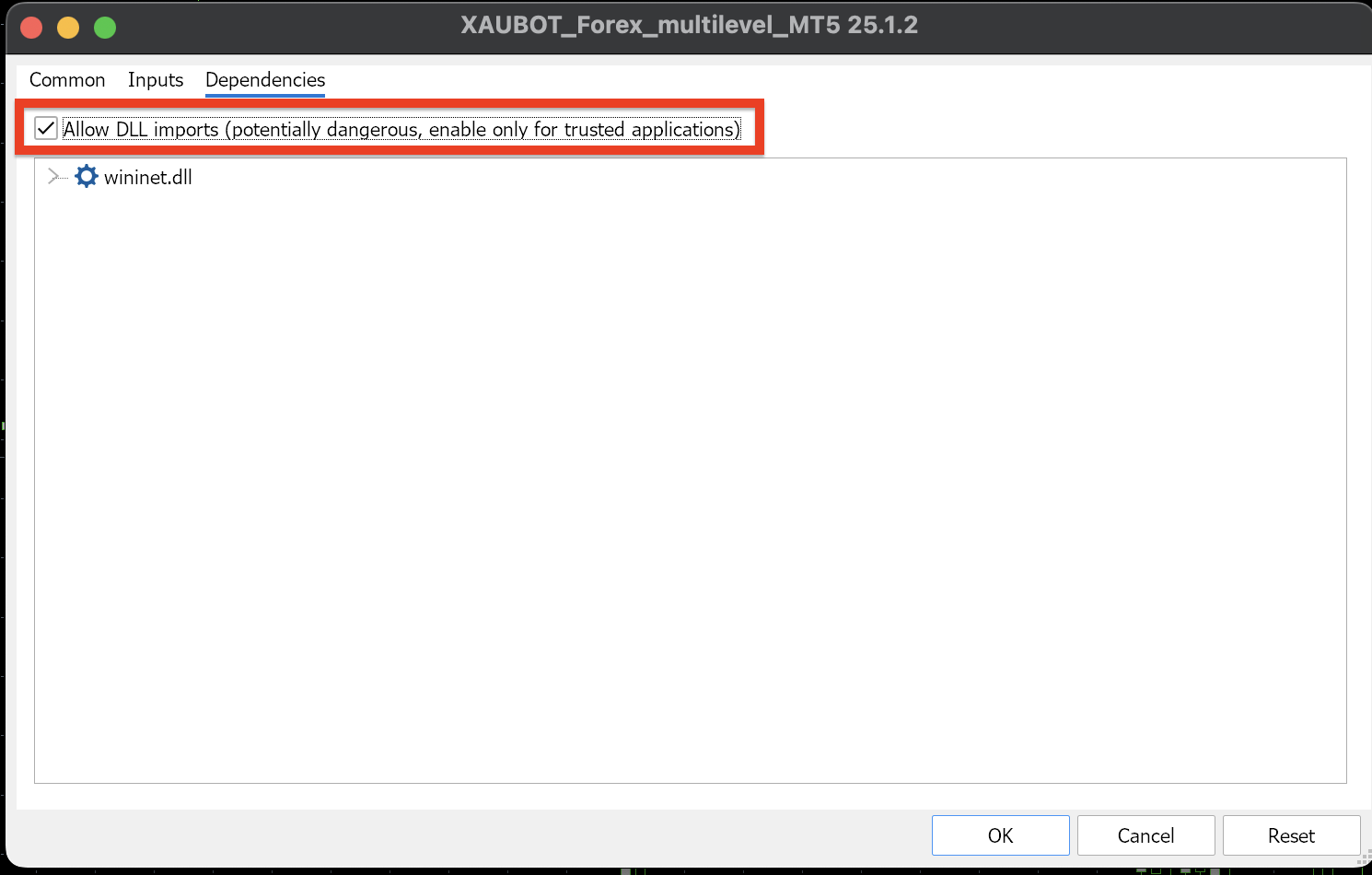
Once you drag the bot onto your preferred currency pair, the bot’s settings window will pop up. Go to the Common tab and enable Allow Live Trading. Then, switch to the Inputs tab and enter your license key from the subscription page, which is linked to your account number. Next, go to Dependencies and enable Allow DLL Imports. Finally, click OK to apply the settings.
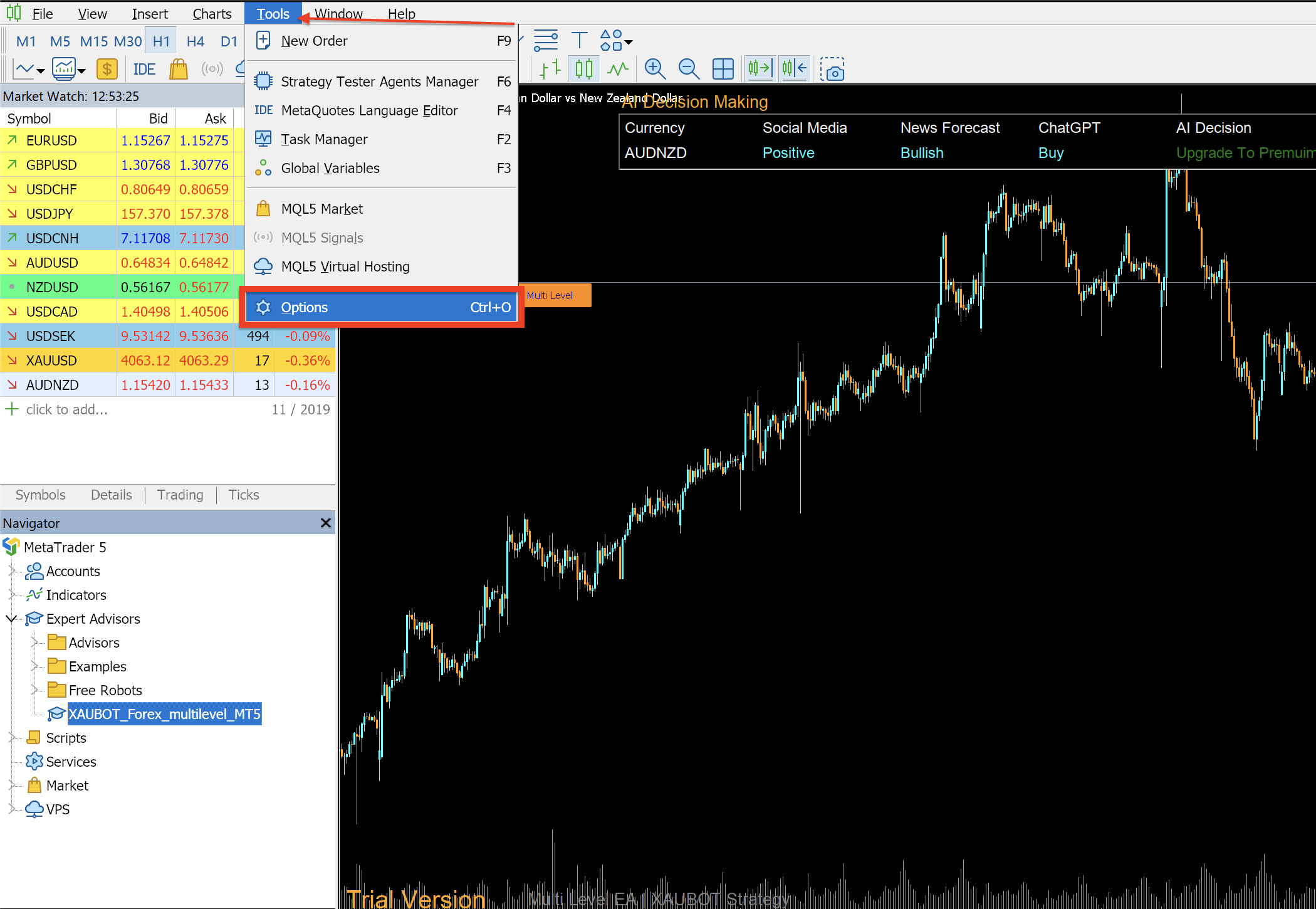
9. Click on “Tools”
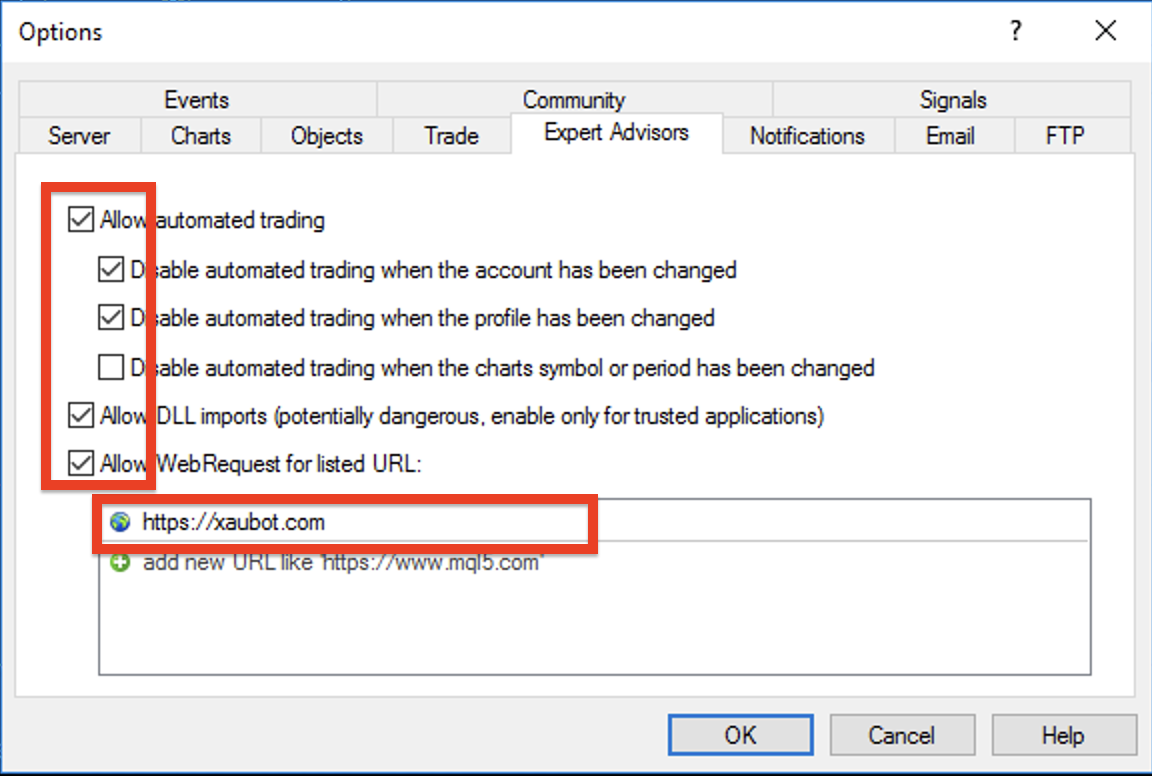
Click on the Tools menu to open the settings window. In the Expert Advisors tab, add the XAUBOT URL https://xaubot.com exactly in this format, then click OK to save the changes.
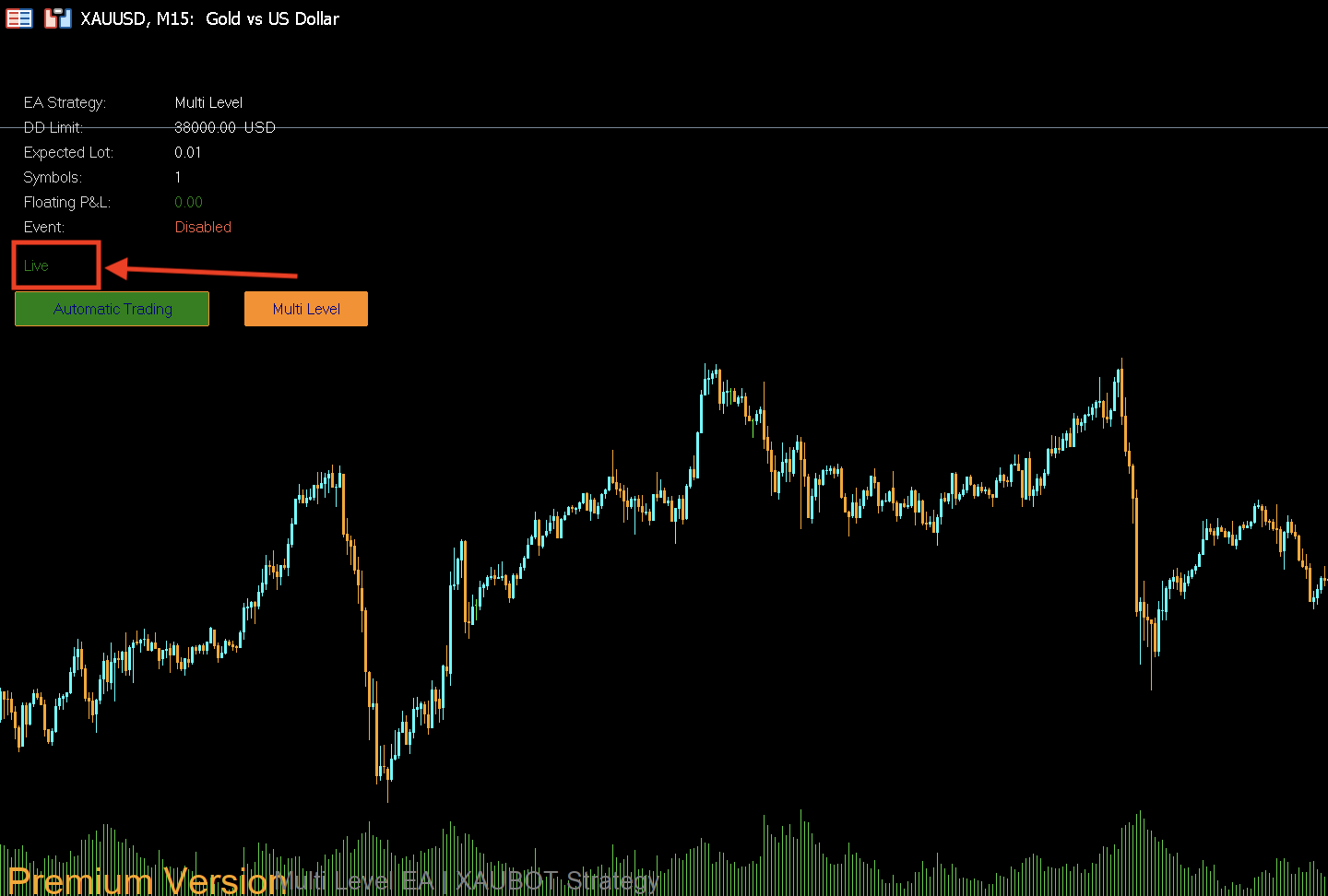
9. That’s it! Your Bot is Live!
After entering the URL, the bot will automatically connect to the server and begin operating in live mode. This confirms that your license has been successfully verified and the bot is ready to start executing trades based on your configured settings.