

Key Takeaways
- Backtesting shows how an EA would have traded on past data. In MT4 you open the Strategy Tester with Ctrl+R, choose the EA, symbol, dates and model, then click Start.
- Use Every tick and check data quality. Faster models skip price detail, and gaps in history or an unrealistic spread can make a weak EA look strong.
- Costs can erase a thin edge. In our worked example, adding commission cut net profit from $2,400 to about $1,350 over 300 trades.
- A backtest is a filter, not proof. Avoid over optimizing, test several market conditions, and forward test on a demo account before going live.
To backtest your expert advisor on MetaTrader 4, open the Strategy Tester with Ctrl+R, choose the EA, symbol, timeframe and date range, select the Every tick model and click Start. When the run finishes, the Report and Graph tabs show how the EA would have traded on that history, including profit, drawdown and every trade.

A backtest is only as good as its data and settings. This guide covers the MT4 steps, the MT5 differences, how to check data quality, and how to read the report without fooling yourself.
How to Backtest Your Expert Advisor in MT4: The Steps
- Install the EA. In MT4, open File, then Open Data Folder, go to MQL4, then Experts, and copy the .ex4 or .mq4 file there. Refresh the Navigator or restart MT4.
- Download history. Open Tools, then History Center (F2), select the symbol and download its history so the tester has data to work with.
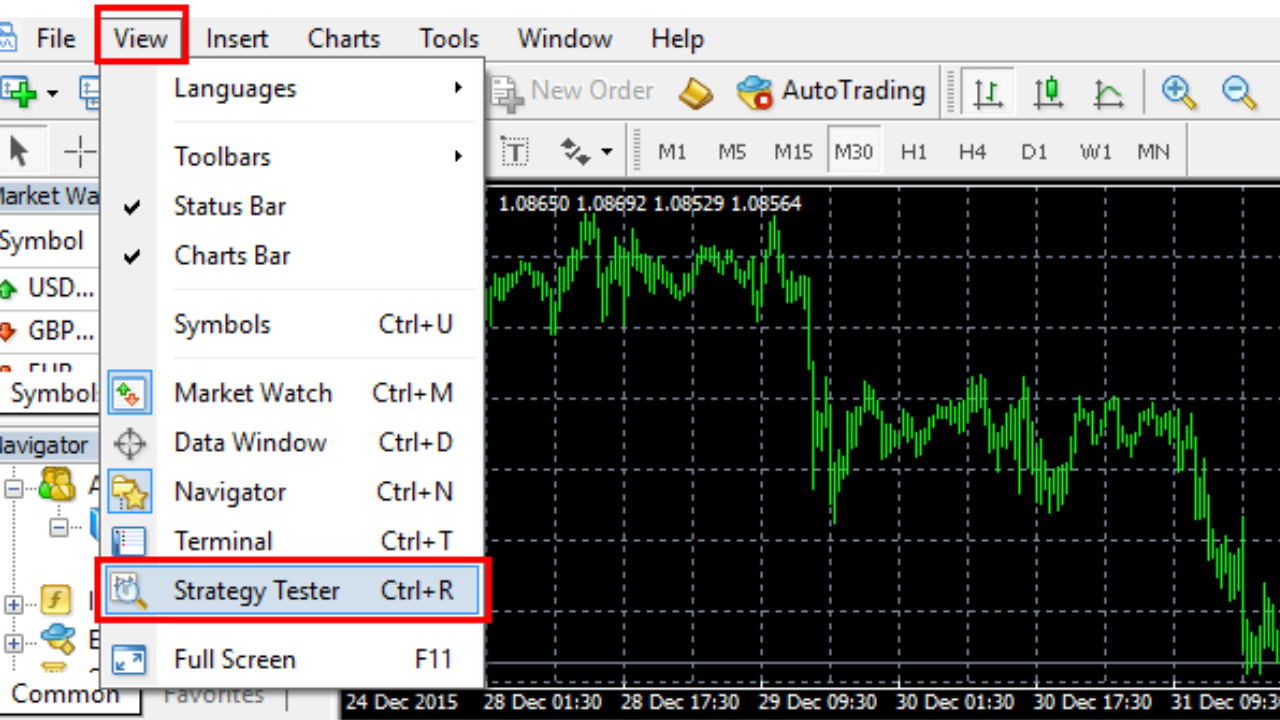
- Open the Strategy Tester. Press Ctrl+R or choose View, then Strategy Tester.
- Pick the EA, symbol and timeframe. Use the timeframe the EA was designed for, since the same EA can behave very differently on M5 and H1.
- Choose the model. Select Every tick for the most detailed result (see the table below).
- Set the dates and spread. Use several years that include both trending and ranging periods, and set a realistic fixed spread instead of Current.
- Set the inputs. Click Expert properties to enter the starting deposit and the EA’s settings, such as lot size or risk.
- Click Start. Tick Visual mode on your first run to watch the trades on a chart and catch obvious logic errors.
MT4 Modeling Modes Compared
| Model | How it builds prices | Speed | Best for |
|---|---|---|---|
| Every tick | Simulates price movement inside each bar from the smallest available timeframe | Slowest | Final tests, and any EA with tight stops or scalping logic |
| Control points | Uses a smaller set of reference prices inside each bar | Faster | Quick checks of EAs that trade on bar closes |
| Open prices only | Uses only the open price of each bar | Fastest | Rough screening of EAs that act once per bar |
The faster modes skip price detail. A scalper or an EA with a tight stop can look far better in Open prices only than it would ever trade, so always confirm a promising result in Every tick.
Check Your Data Before You Trust the Result
Most misleading backtests come from poor data or unrealistic costs, not from the EA itself. Check these four things in every MT4 report:
| Check | Where to find it | What you want |
|---|---|---|
| Modelling quality | Top of the Report tab | As high as your data allows; MT4’s standard minute history tops out at 90% |
| Mismatched charts errors | Top of the Report tab | Zero; any other number means gaps in your history |
| Spread | Tester settings | A fixed spread close to what your broker really charges |
| Commission | Your broker’s account terms | If the test does not include it, subtract it from the results yourself |
A modelling quality of n/a or a large number of mismatched chart errors means the history has gaps. Download the data again in the History Center, or use a longer period with complete data.
How to Read the Backtest Report
The Report tab lists dozens of numbers. These are the ones that tell you whether a result is worth trusting:
| Report figure | What it means |
|---|---|
| Total net profit | Profit after all trades, before any costs the test did not include |
| Profit factor | Gross profit divided by gross loss; above 1 means the EA made more than it lost |
| Expected payoff | Average profit or loss per trade |
| Maximal drawdown | The largest fall from an equity peak, in money and as a share of the account |
| Total trades | How many trades the result is based on |
| Maximum consecutive losses | The longest losing streak, which tells you how painful the bad runs were |
Worked example: reading a hypothetical report
Say an EA turns a $10,000 test deposit into $12,400 over 300 trades. Gross profit is $8,400 and gross loss is $6,000, and the largest drawdown is $1,800.
The profit factor is $8,400 ÷ $6,000 = 1.40, and the expected payoff is $2,400 ÷ 300 = $8 per trade. The recovery factor, net profit divided by maximum drawdown, is $2,400 ÷ $1,800 = 1.33.
Now check costs. If your broker charges $7 per standard lot in commission and the EA averaged 0.5 lots per trade, that is about $3.50 per trade, or $1,050 across 300 trades, which cuts net profit from $2,400 to about $1,350. A result that looked solid becomes thin once real costs are in.
How to Backtest an EA in MetaTrader 5
The MT5 Strategy Tester follows the same idea with a few useful differences:
- Open it with Ctrl+R or View, then Strategy Tester, and select your EA.
- Choose the symbol, timeframe and date range. MT5 downloads the history it needs automatically.
- Under Modelling, choose Every tick based on real ticks where your broker provides tick data. Otherwise use Every tick.
- Set the deposit, leverage and a delay setting if you want to simulate slower execution.
- Click Start, then review the Backtest, Graph and Trades tabs.
Real ticks are the biggest upgrade over MT4. With real ticks, the spread can change inside a minute, while generated ticks use one fixed spread per minute bar, as explained in MetaTrader 5’s guide to real and generated ticks. For spread sensitive EAs such as scalpers, that difference can change the result completely.
MT4 and MT5 EAs are not interchangeable, so you need the right version of the EA for each platform. Our guide on how to create and optimize your own EA for MT5 covers MT5 optimization in more depth.
Backtesting Mistakes That Make a Bad EA Look Good
- Over optimizing. Tuning many settings until the curve looks perfect usually fits the past, not the future. Keep part of your history aside and test the final settings on it.
- Testing one market condition. A trend EA tested only on a trending year will look brilliant. Include ranging and volatile periods.
- Ignoring costs. Spread, commission and swap can turn a small edge into a loss, especially for EAs that trade often.
- Too few trades. Thirty trades can be luck. Look for hundreds across different conditions before drawing conclusions.
- Trusting the fast models. A result from Open prices only should always be confirmed in Every tick.
From Backtest to Forward Test
Once a backtest looks sound, run the EA on a demo account for at least a few weeks. Compare its trades, average result and drawdown with the backtest; if live behavior is very different, the backtest was missing something.
If you would rather not code or tune an EA from scratch, XAUBOT, our own platform, lets you customize a prebuilt bot and download it for MT4 and MT5, so you can run it through these same tests. Our strategies are tracked live on Myfxbook, and you can try a bot free for 15 days on demo from the forex trading bot page.
For what to look for once the numbers are in, see our guide to consistent expert advisors and how to test them.
Backtesting Questions
How many years should I backtest?
Enough to include several market conditions, which for most forex EAs means several years. What matters more than length is variety: trending, ranging and volatile periods.
Why are my backtest and live results different?
The usual causes are spread, slippage, commission and gaps in the test data. Live trading also includes requotes and execution delays that the tester only partly simulates.
What is a good profit factor?
Any value above 1 means the EA made more than it lost, but a result barely above 1 can disappear once costs are added. Judge it together with drawdown and the number of trades.
Can I backtest on my phone?
No. The Strategy Tester is only in the desktop versions of MT4 and MT5. For running a bot once it is tested, see our guide to MT4 bot trading.
Before You Go Live
A good backtest shows that a strategy could have worked in the past, not that it will work next month. Trading with leverage carries a high risk of loss, so start live with small size and never risk money you cannot afford to lose.
A practical next step: pick one EA, run it in Every tick with a realistic spread, check modelling quality and drawdown, then forward test it on a demo account before changing anything.